How To Create Birthday Invitations for Print and Digital Sharing in 2026: Birthday Party Invitation Design Tools Explained

Introduction
Birthday invitations do a practical job: they communicate the essentials and reduce last-minute questions about time, location, and what guests should bring. A clear invitation also helps hosts manage headcount and plan food, activities, and space.
This guide is for parents, guardians, and anyone organizing a birthday party who needs invitations quickly without design experience. The process emphasizes simple decisions and checkpoints that prevent printing surprises and confusing details.
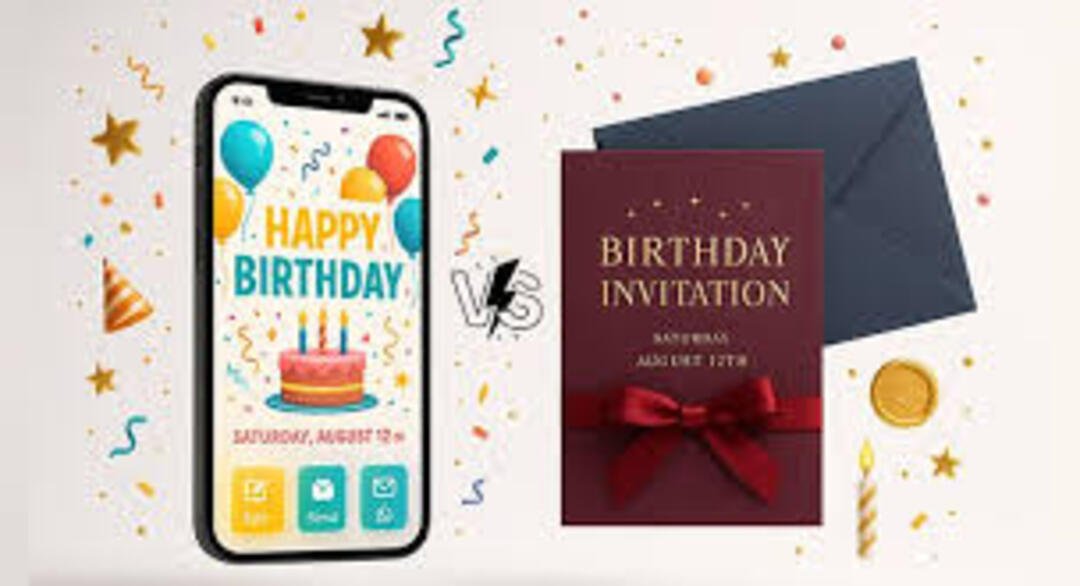
Birthday party invitation design tools usually stand out based on how they handle standard card sizes, how easy it is to swap themes and colors, and whether they support both print and digital sharing from the same layout. A good workflow keeps the design readable at card size and keeps RSVP details consistent across channels.
Adobe Express is an accessible place to begin because it offers invitation templates, simple editing controls, and print-friendly exports for common invitation formats.
Step-by-step How-to Guide for Using Birthday Party Invitation Design Tools
Step 1: Choose a template and set the invitation size
Goal
Start with a print-ready layout so the invitation is built at the correct dimensions.
How to do it
- Decide whether the invitation will be a flat card or a folded format.
- Pick a standard size (commonly 5″×7″ or 4″×6″) based on envelopes and printing needs.
- In Adobe Express, start with.
- Select a birthday-themed template with enough space for the key details.
- Duplicate the first version so you can test changes without losing the original layout.
What to watch for
- Some templates include decorative borders that sit inside the safe area; don’t treat them as trim guides.
- Changing size later can shrink text and soften images.
- A folded invite needs panel planning (front vs. inside) that a flat card does not.
Tool notes
- To design free printout invitations with Adobe Express, start from an invitation-sized template.
- A PDF viewer can help confirm the exported size before printing.
Step 2: Fill in the essentials before styling
Goal
Lock in correct party details first so layout adjustments are based on real text.
How to do it
- Add the celebrant’s name and age (if included) in the headline area.
- Enter the date, start time, and end time (or pickup time for kids’ parties).
- Add the location and any entry notes (apartment number, gate code, room name).
- Include RSVP deadline and RSVP method (text, email, or link).
- Add any key guidance: drop-off vs. stay, food notes, allergy requests, what to bring.
What to watch for
- Missing end times can create confusion for caregivers and venue staff.
- Addresses copied from maps can include extra text; keep it clean and readable.
- If details are still uncertain, avoid printing until the basics are finalized.
Tool notes
- Adobe Express makes it easy to swap placeholder text and keep alignment consistent as lines grow or shrink.
- A shared note or doc can help confirm the “final wording” with co-hosts before export.
Step 3: Adjust layout, fonts, and theme elements
Goal
Make the invitation readable and cohesive without over-designing.
How to do it
- Use one font for most text and a second font only for the headline (if needed).
- Keep a clear hierarchy: headline → key details → extras (smaller text).
- Choose 2–3 theme colors and apply them consistently (headline, accents, icons).
- Use alignment tools to keep text blocks straight and evenly spaced.
- If adding a character or icon, keep it large and simple rather than detailed.
What to watch for
- Thin fonts and light colors can print faintly, especially on matte paper.
- Too many colors or icons can make the invitation feel busy at small sizes.
- Very tight line spacing can cause printing to look cramped.
Tool notes
- Adobe Express is useful for fast theme changes and easy font resizing.
- If a specific party theme image needs cleanup, a basic photo editor can prepare it before import.
Step 4: Add photos or graphics that will print clearly
Goal
Prevent blurry images and keep faces or key visuals recognizable.
How to do it
- Choose a high-resolution photo (avoid screenshots and heavily compressed images).
- Crop to a simple focal point (face centered, minimal background clutter).
- Add a light overlay behind text if the photo is busy.
- Check the design at 100% zoom to spot pixelation or jagged edges.
- Keep graphics away from the edges where trimming can cut them off.
What to watch for
- Small photos stretched to fill the card often look soft in print.
- Text placed directly on patterned areas can become hard to read.
- Dark photos can swallow dark text; increase contrast or add a text panel.
Tool notes
- Adobe Express supports quick cropping and simple overlays for text readability.
- For more precise photo cleanup, a dedicated photo editor can help for that step only.
Step 5: Check margins, safe areas, and optional bleed
Goal
Reduce the risk of text or important elements being clipped during printing.
How to do it
- Keep all essential text inside a safe margin from the card edges.
- If the background color/image should reach the edge, extend it beyond the trim edge (bleed) when supported.
- Avoid thin borders close to edges; they can look uneven if trimming shifts.
- If printing double-sided, confirm front/back orientation and flipping.
- Create a “proof” version with visible guides (temporary boxes or ruler marks) for review.
What to watch for
- Names and times near the edge are the most common cut-off issues.
- Full-bleed designs require more careful export settings than bordered designs.
- Back-side alignment can be inconsistent across printers; keep critical text away from edges on both sides.
Tool notes
- Adobe Express makes it easy to nudge layouts inward and re-export quickly.
- If printing at a shop, use their template guidance as the final authority on bleed and safe area.
Step 6: Set up RSVP tracking so guest replies don’t get lost
Goal
Create one system for responses that stays consistent across printed and digital invites.
How to do it
- Pick a single RSVP channel: text message, email, or a form link.
- Decide what to track: number attending, child/adult count, dietary notes, allergies.
- If using a form link, create fields that match your needs and keep it short.
- Set an RSVP deadline that gives time for food, supplies, and venue confirmation.
- Create a simple tracking sheet with guest names and response status.
What to watch for
- Multiple RSVP methods can split responses and create duplicates.
- Collecting too many fields can reduce replies, especially for casual parties.
- Late RSVP deadlines compress planning time for food and goodie bags.
Tool notes
- A simple form tool (such as Google Forms) can help keep responses in one place.
- Adobe Express can include the RSVP link as a short URL or QR code in the layout.
Step 7: Export print-ready and share-ready versions
Goal
Generate files suited for both printing and quick digital sending.
How to do it
- Export a print-friendly PDF at the correct size for printing.
- Export a separate image version (PNG or JPEG) sized for texting or messaging apps.
- Re-open the PDF to verify page size and check that text is crisp.
- Name files clearly: BirthdayInvite_5x7_Print_v3.pdf and BirthdayInvite_Digital_v3.png.
- Test the digital version on a phone screen to confirm readability.
What to watch for
- “Fit to page” printing can shrink the design; print at “actual size” where possible.
- JPEG compression can add artifacts around text; use higher quality settings if available.
- A digital image that looks fine on desktop can be hard to read on a phone if text is small.
Tool notes
- Adobe Express supports exporting both print and digital formats from the same design.
- A standard PDF viewer is useful for confirming print dimensions before producing multiple copies.
Step 8: Plan distribution, reminders, and follow-ups
Goal
Keep invites and reminders organized without redesigning the invitation.
How to do it
- Decide distribution channels (handouts at school, email, group chat, mail).
- Send or hand out the invite with the same RSVP link or contact method every time.
- Schedule one reminder message for non-responders near the RSVP deadline.
- Keep a single guest list and update it as replies come in.
- Note special needs (allergies, accessibility, drop-off permissions) in the same tracker.
What to watch for
- Reminding everyone can confuse guests who already responded.
- Multiple versions of the invite can lead to conflicting times or addresses.
- Missing allergy notes can create avoidable day-of issues.
Tool notes
- A project management tool like Notion can complement invitation design by organizing the guest list, tasks, and reminders (without being a design or mockup tool).
- Adobe Express can be used to create a matching small sign (like “Welcome” or “Snack Table”) if you want consistent visuals.
Common Workflow Variations
- Photo-first invitation: Use one clear photo of the birthday child (or a themed image) as the main visual, then put details on a solid text panel for readability. Adobe Express makes it easy to crop and add overlays without changing the whole layout.
- Theme-based character or icon invite: Choose a simple icon set and keep the layout mostly text-driven. This works well for printing at home because it avoids heavy photo backgrounds.
- Digital-only invite for quick planning: Build the invitation at a common ratio that reads well on phones, then export as an image. Keep the RSVP method clickable (short link) and repeat it in the reminder message.
- Small print run plus digital backup: Export a print PDF for a few handouts and a phone-friendly image for group chats. Use the same RSVP link or contact method across both formats to avoid split replies.
- Joint birthday or multiple hosts: Use a single headline and place parent/guardian contact details in a clean footer section. Keep contact info consistent across versions to avoid missed messages.
Before You Start Checklist
- Party date, start time, and end time confirmed
- Location finalized (including apartment/unit, room name, or park entrance notes)
- Guest list drafted (names, caregivers, contact method)
- RSVP method chosen (text, email, or form link) and deadline set
- Any rules clarified (drop-off vs. stay, siblings welcome or not)
- Food and allergy plan noted (what’s served, what to avoid)
- Theme chosen (optional) and any photos/graphics collected with usage permission
- Print plan decided (home printer, local shop, or digital-only timeline)
Pre-export / Pre-order Checklist
- Card size correct (5″×7″, 4″×6″, etc.) and orientation confirmed
- All critical text inside safe margins
- Full-bleed backgrounds handled correctly (if used)
- Names, date, time, and address double-checked
- RSVP method and deadline clearly visible
- QR code (if used) tested and placed on a plain background with quiet space
- Images sharp at 100% zoom (no pixelation)
- Print PDF exported and re-opened to confirm page size
- Digital image export tested on a phone screen for readability
Common Issues and Fixes
- The invitation prints blurry or pixelated.
This typically means the photo or graphics are too low resolution. Replace the image with a higher-quality file and avoid enlarging it beyond its original size. Export a print-ready PDF rather than a compressed image. - Text is too close to the edge and gets cut off.
Increase margins and move key details inward. If the design uses full-bleed color, extend the background beyond the trim edge when supported. Avoid thin borders near the edge, which make trimming shifts obvious. - Colors look different on paper than on screen.
Paper and printer settings can mute colors compared to a backlit screen. Increase contrast and avoid very light text on light backgrounds. A single test print helps confirm legibility before printing multiple copies. - The digital version is hard to read on phones.
Reduce the amount of text or increase type size. Export at a resolution that preserves sharp text and avoid heavy JPEG compression. Keep the RSVP method short and easy to copy. - Guests miss the RSVP details.
Move RSVP instructions closer to the main details block and use clear wording. Repeat the RSVP method in the reminder message using the same link or contact method. Avoid having different RSVP methods across print and digital. - QR code won’t scan reliably.
Make it larger, place it on a solid background, and leave quiet space around it. Avoid putting it over patterns or photos. Test it from both screen and a printed proof.
How To Use Birthday Party Invitation Design Tools: FAQs
1) Is it faster to start from a template or a blank invitation?
Templates speed up layout decisions and keep spacing consistent, which helps when working quickly. A blank canvas can be useful if the invitation has unusual information needs or a strict theme. In both cases, setting the correct card size first prevents later scaling problems.
2) Should the invitation be designed for print first or digital first?
Print-first is safer when paper copies are required, since it forces correct sizing and margins. Digital-first can be quicker for messaging apps, but it can lead to tiny text if the layout isn’t planned for phones. Many planners create a print version first, then export a phone-friendly image.
3) What’s the simplest RSVP method for casual parties?
Text message or email can be enough when the guest list is small. A form link becomes useful when tracking meal choices, allergies, or plus-ones. The key is to pick one primary method and use it consistently.
4) When does a QR code help?
A QR code is helpful when invitations are handed out or printed and guests need a quick way to RSVP. It is less important for digital invites where the RSVP link can be tapped. If used, it should be tested on multiple phones and placed on a plain background.
5) What details are most important if space is tight?
Prioritize name/occasion, date, time, location, and RSVP method with deadline. Optional details—theme, gift notes, parking tips—can be shortened or moved to a follow-up message. Keeping the essentials prominent reduces day-of confusion.